
Once a job posting is approved, publish it so candidates can see and apply to it. StaffingManager doesn’t currently allow direct publishing to job boards, but you can copy and paste to your posting accounts, and then track the posting in the Marketing campaign modal.
To publish and track a job posting
-
Go to the job requisition and, under Preparation, select Marketing materials to open the Marketing materials list.
-
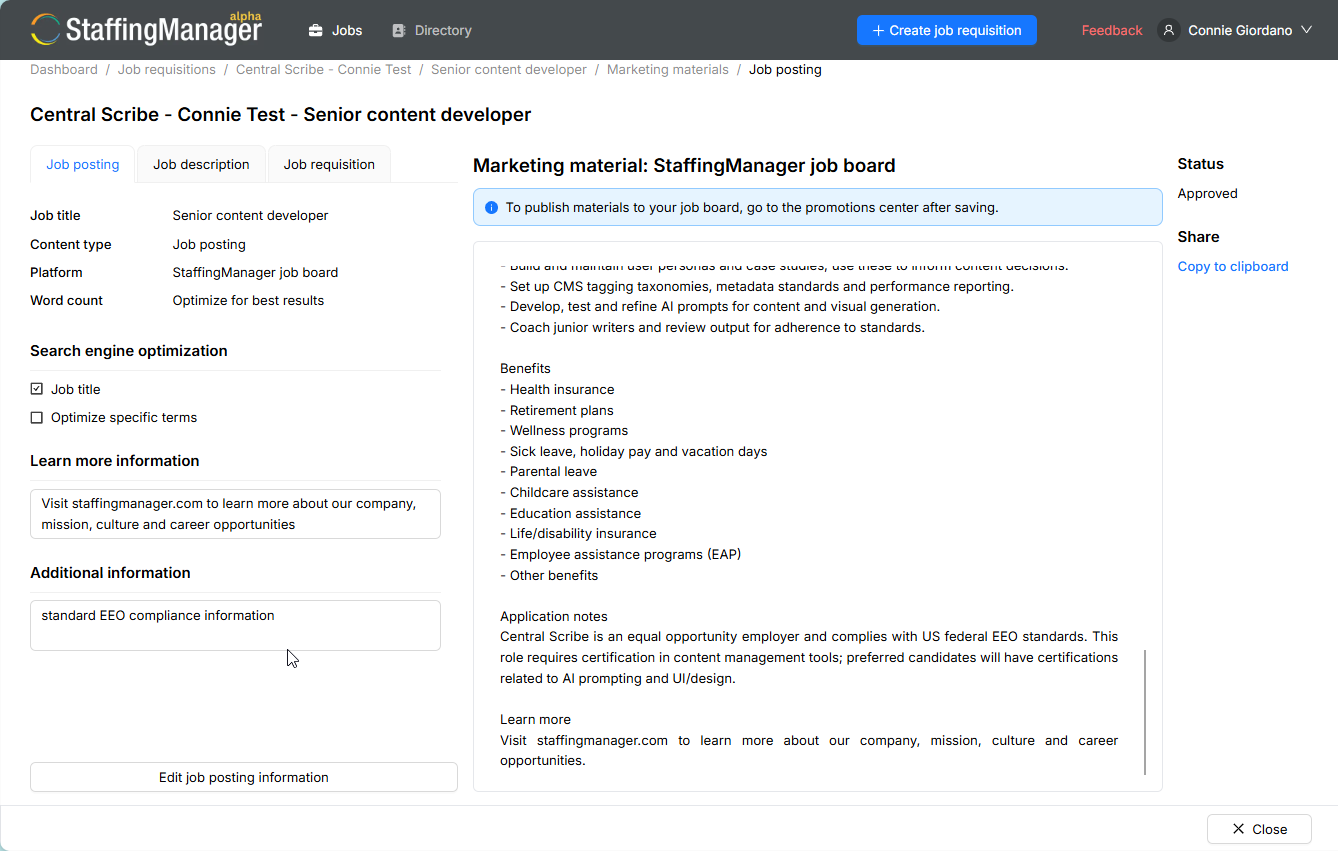
Open the Job Posting detail screen.
View Job posting detail screen
-
If no additional changes are required, click Copy to clipboard. If changes have been made, click Approve.
-
Follow your normal procedures to open your account portal on the selected job board and publish it.
Repeat this process for each job board you want to post to.
-
Return to the job Requisition screen and select the Campaign management link in the right column.
-
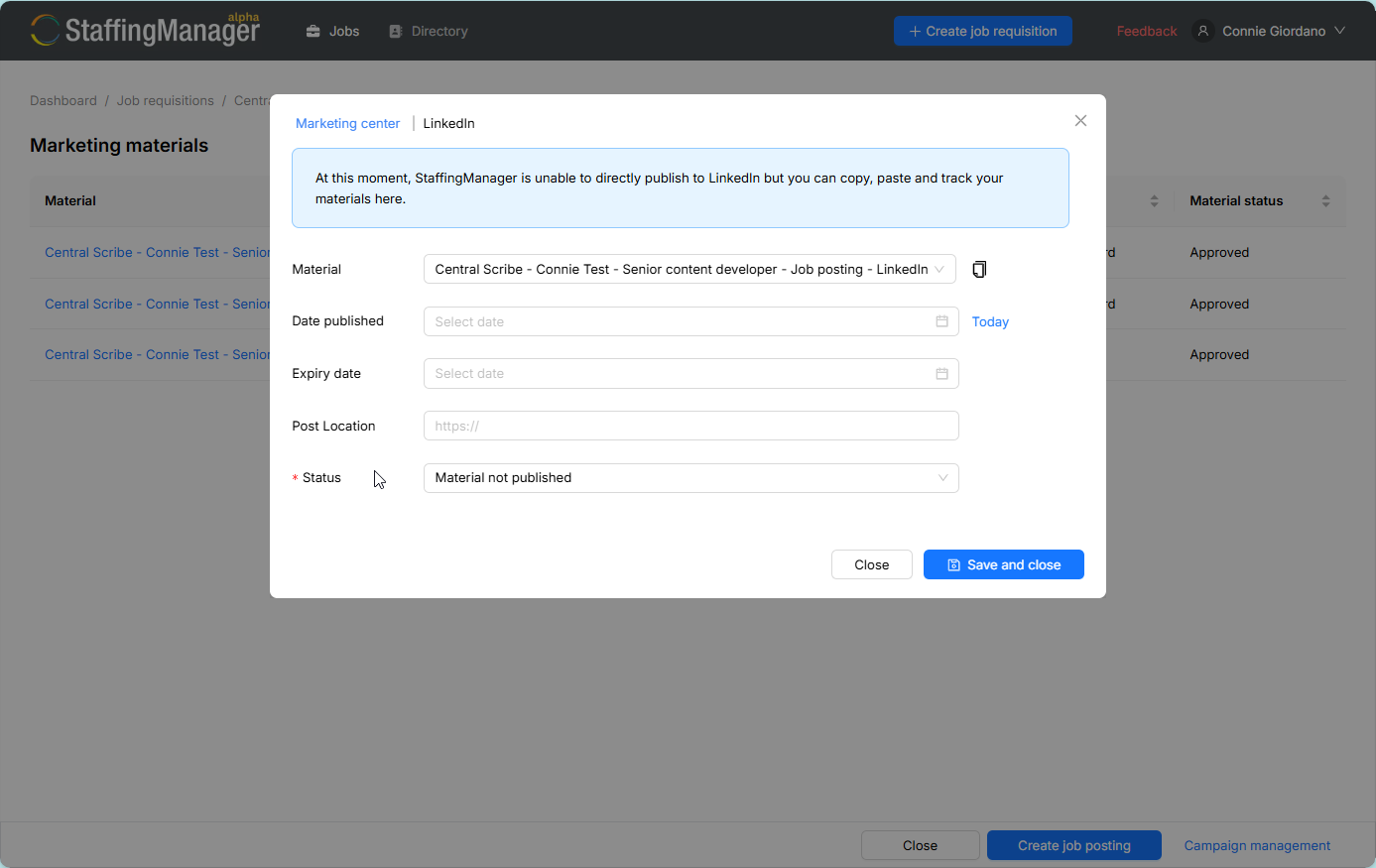
In the Marketing campaign modal, click the Track button next to the Status for each posting.
-
Complete the Date published and Expiry date fields and type in the URL for the job board.
-
Select a Status from the dropdown list.
-
Click Save and close.
Tracking details in the Marketing campaign modal
To take a posting down or mark it complete
-
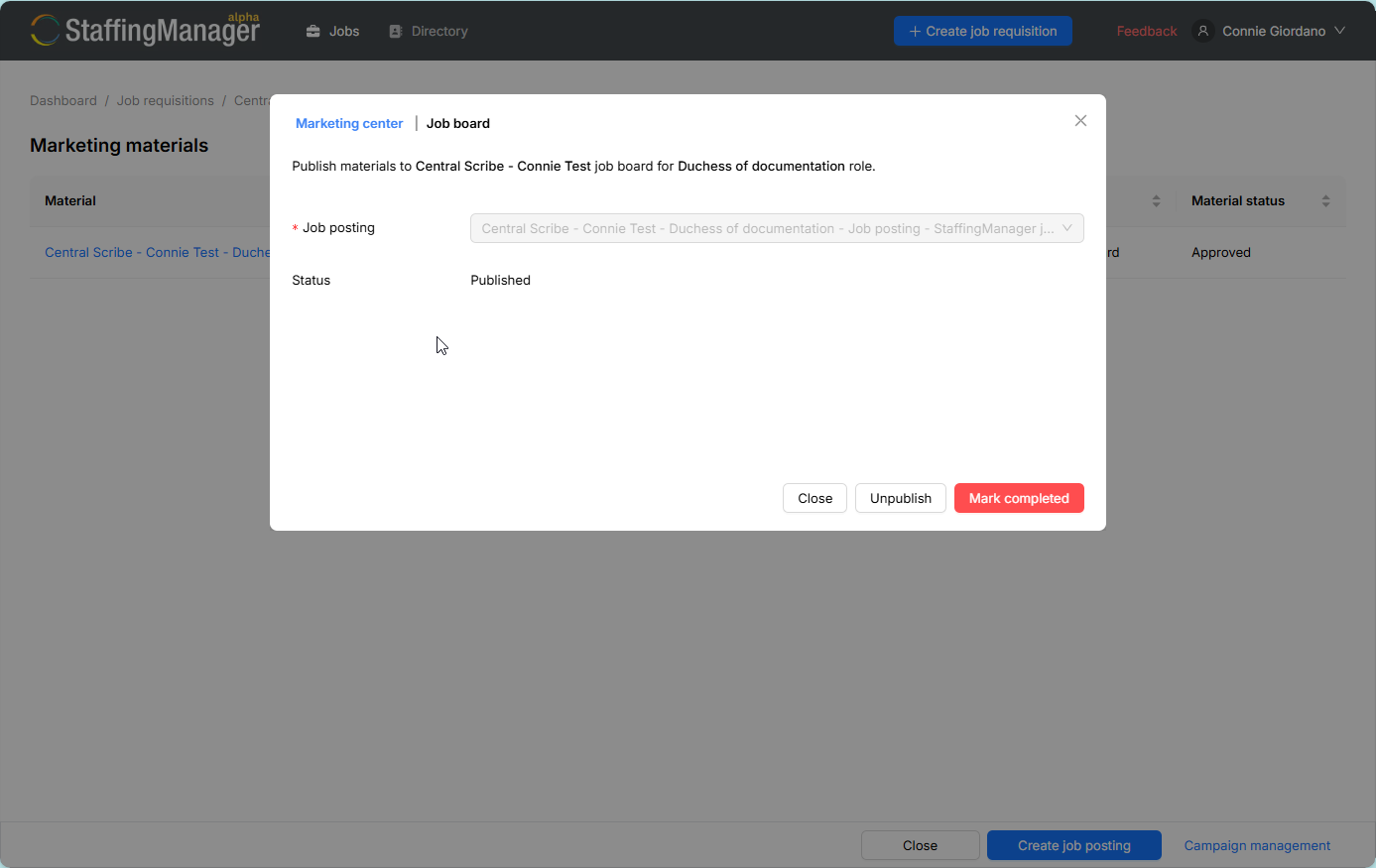
From the requisition, select Campaign management, then click Update next to the status for the selected published posting to open its job board details.
-
Select Unpublish to remove the posting from your job board while keeping the material for later use.
-
Select Mark completed once you've filled the role and no longer need the posting live.
-
The Requisition detail screen redisplays.
Posting detail modal with Unpublish and Complete options
Tip
After publishing, check the requisition's Promotions summary. It should show your marketing materials as approved and your marketing campaign as published, giving you a quick health check without opening each item. |