
Overview
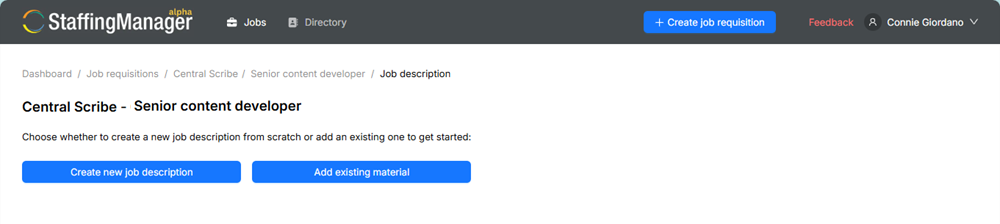
When you open the Job description task for a requisition that doesn't have one yet, StaffingManager asks whether you want to start fresh or reuse existing content. This article covers creating a new one from scratch.
View choose new or existing start screen
Steps
-
From the job requisition's Preparation panel, click Job description.
-
On the prompt screen, you'll see: “Choose whether to create a new job description from scratch or add an existing one to get started.”
-
Click Create new job description.
-
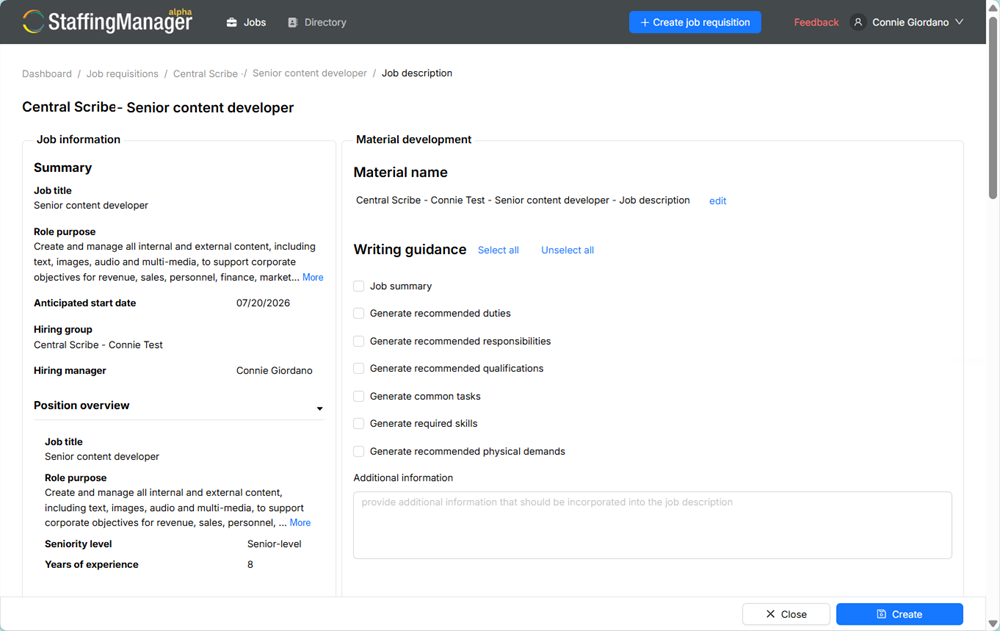
You'll land on the job description builder, split into two panels:
-
Job information: Read-only details pulled automatically from the requisition (job title, role purpose, anticipated start date, hiring group, hiring manager, seniority level, years of experience, and expandable Employment details). Nothing here needs to be entered manually — it's shown so you can confirm the AI has the right context.
-
Material development: Where you configure what StaffingManager should generate.
View the Create Job Description screen
-
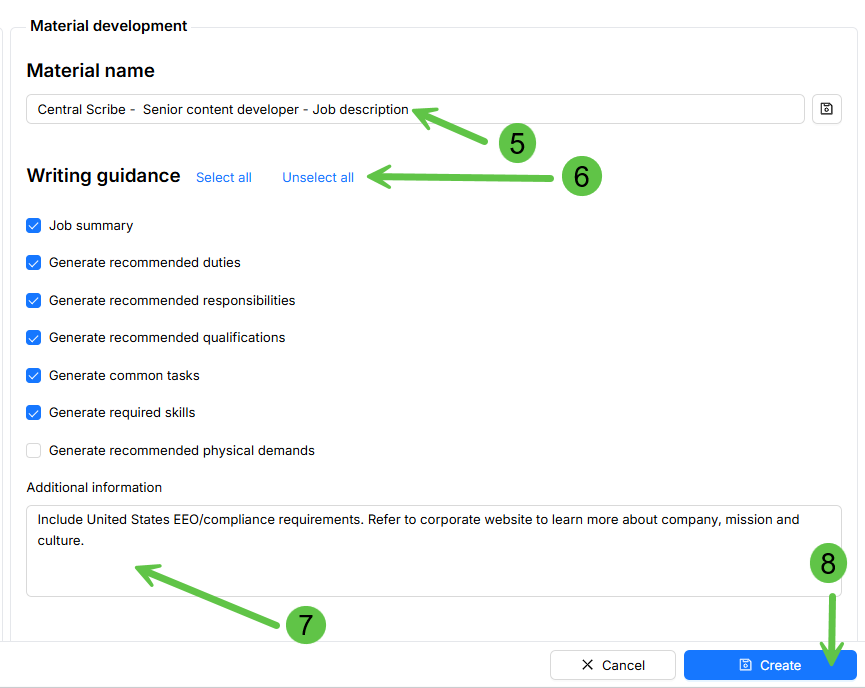
Under Material name, confirm or update the auto-generated name (format: Hiring group – Job title – Job description). Click edit to rename it.
-
Under Writing guidance, check the boxes for the content you want StaffingManager to generate. Options include:
-
Job summary
-
Generate recommended duties
-
Generate recommended responsibilities
-
Generate recommended qualifications
-
Generate common tasks
-
Generate required skills
-
Generate recommended physical demands
Use Select all / Unselect all to quickly toggle every option.
-
In the Additional information box, add any custom instructions you want factored into the draft — for example, required legal language or specific details to include (e.g., “Include US EEO language and corporate website.”).
View the material development details
Tip
The more specific your instructions here, the less manual editing you'll need to do afterward. Mention tone, must-have phrases, compliance language, or anything unique to the role |
-
Click Create at the bottom of the screen.
-
StaffingManager displays a Generating Job description indicator in the top navigation bar while it drafts the content. This typically takes a few seconds.
10. Once generation finishes, you're taken to the Job description review screen.
|
Important — Before you generate You can't skip the Job information review — if anything there looks wrong (job title, seniority level, etc.), go back and correct it on the requisition before generating, since the AI uses those details to write the draft. |