Overview
Whether a stage's questions came from AI generation or manual entry, they land in the same Setup Questions view for review before they're used with candidates.
Steps
-
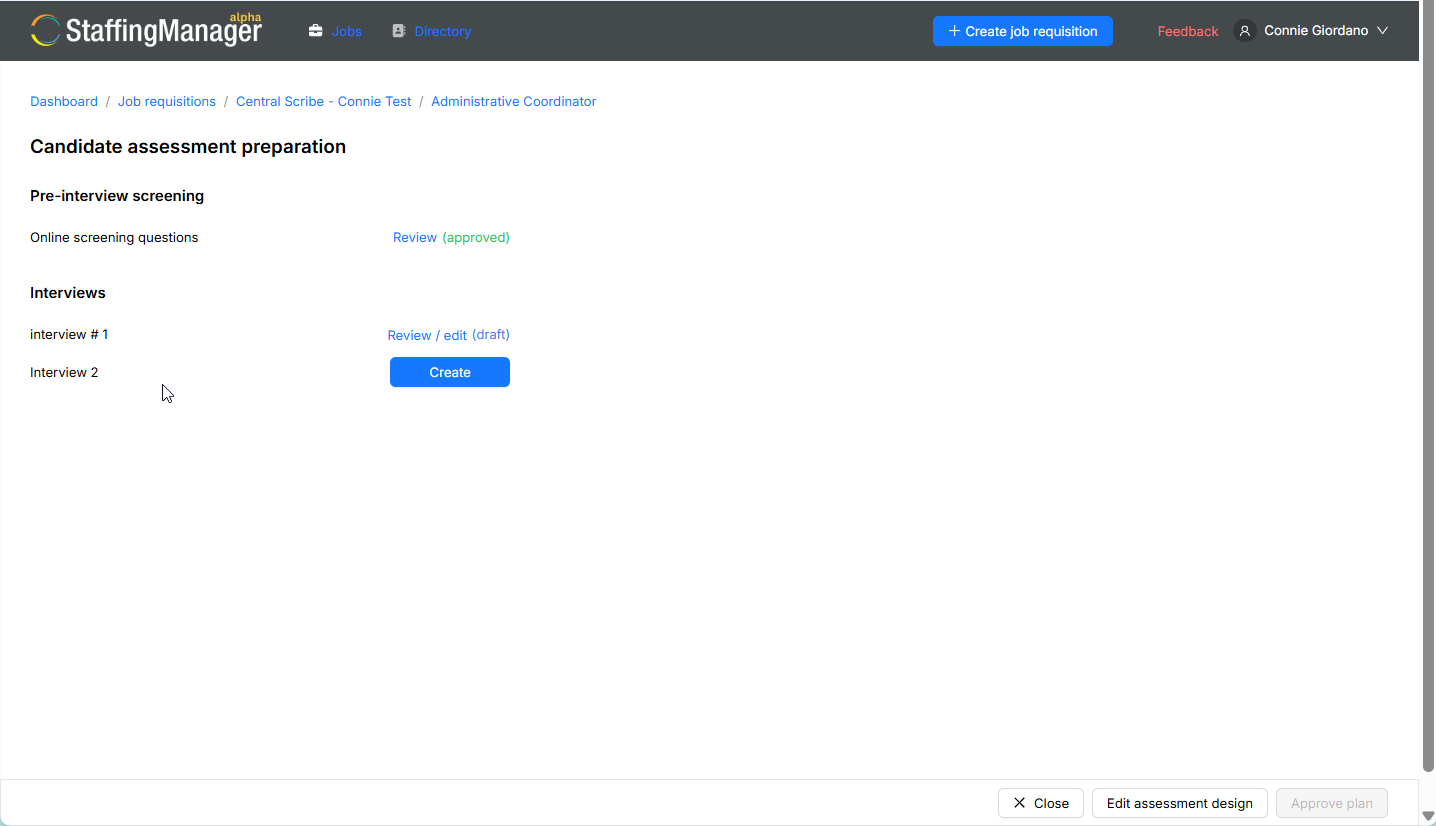
Open a stage from the Candidate assessment preparation hub — stages not yet reviewed show Review / edit (draft).
-
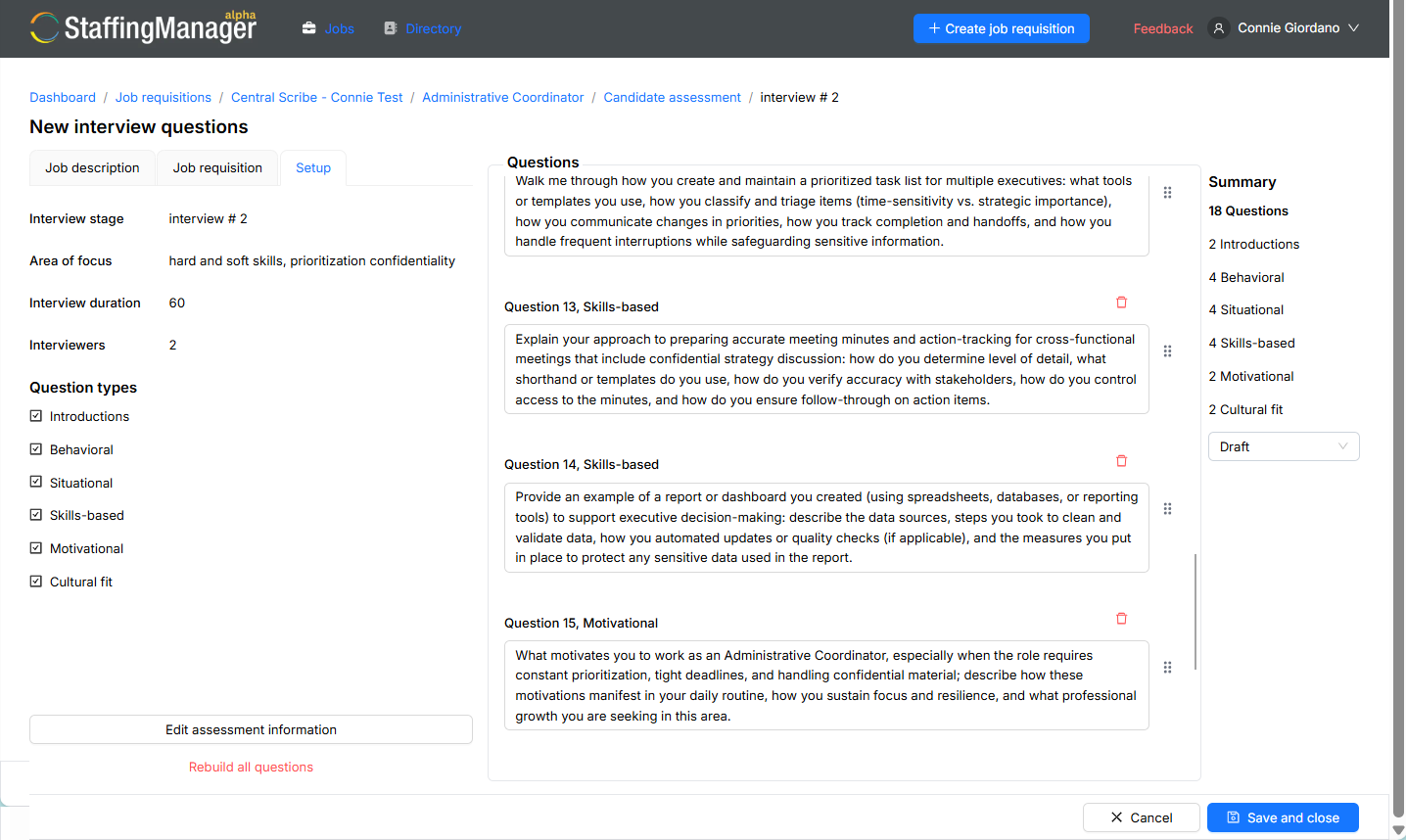
On the Setup Questions tab, review each question in order. Each is labeled Question [N], [Type] with its full text.
-
To adjust the overall setup (duration, question count, or focus area) without regenerating everything, click Edit assessment information in the setup panel.
-
To regenerate the entire question set from scratch using your current setup, click Rebuild all questions.
View the New Interview questions (assessment) screen to edit information or rebuild questions
Warning
Rebuild all questions replaces the existing question set — any manual edits or custom questions you've added will be lost. Use Edit assessment information or edit individual questions if you only need a small change.
-
To edit a single question's wording or type, click directly into that question and make your changes.
-
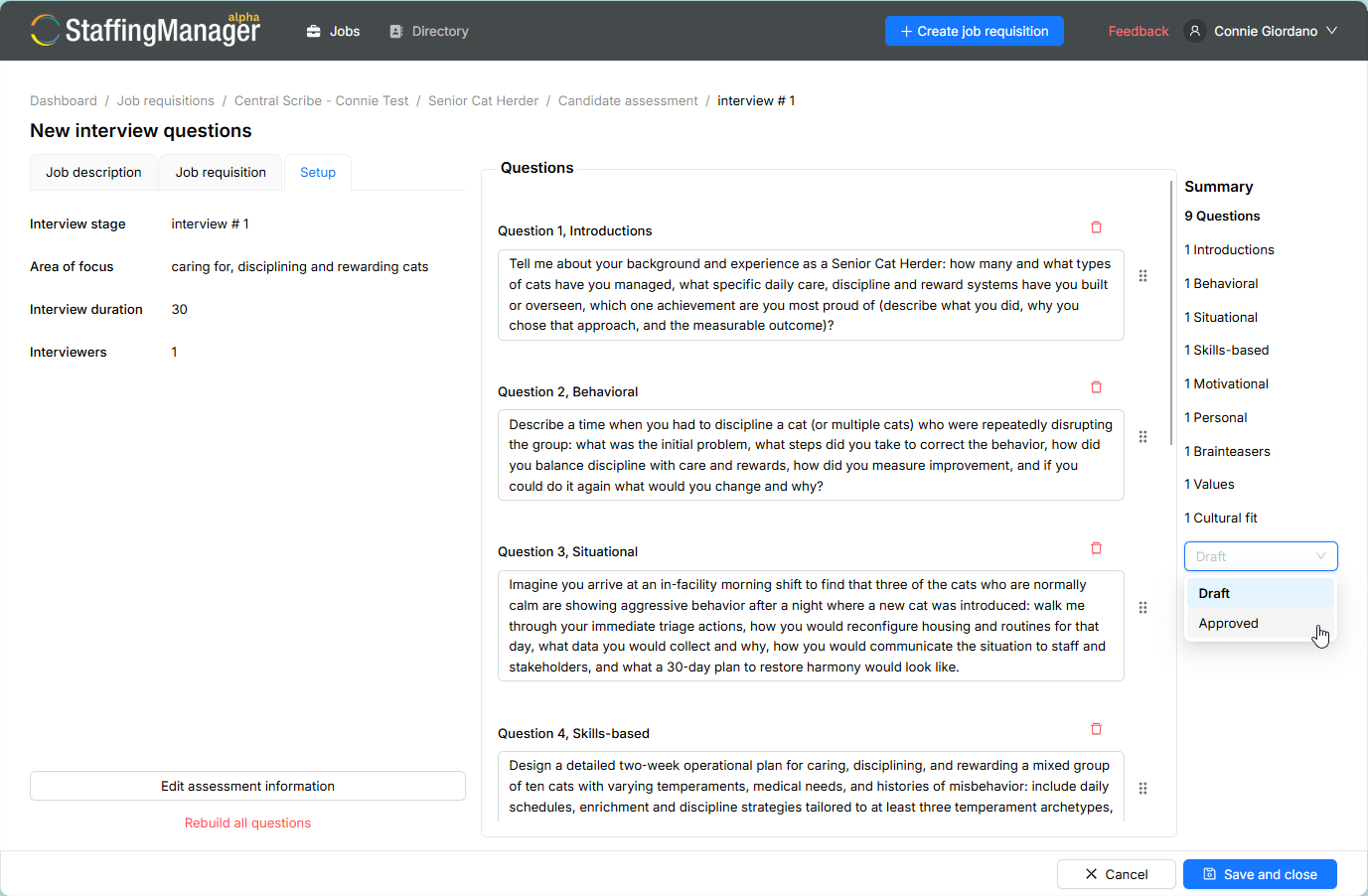
When the question set is ready, use the Status control (Draft / Approved) to mark the set as Approved.
View the question set ready to approve
-
Click Save and close.
-
StaffingManager returns to the Candidate assessment preparation hub, the stage now shows Review (approved) instead of Review / edit (draft).
View the assessment preparation hub with various screening/interview statuses