
You’ve designed your assessment strategy and approved the plan, so you’re now ready to get to the heart of assessments—creating the questions you’ll use in each interview.
Set up an assessment’s interview questions
-
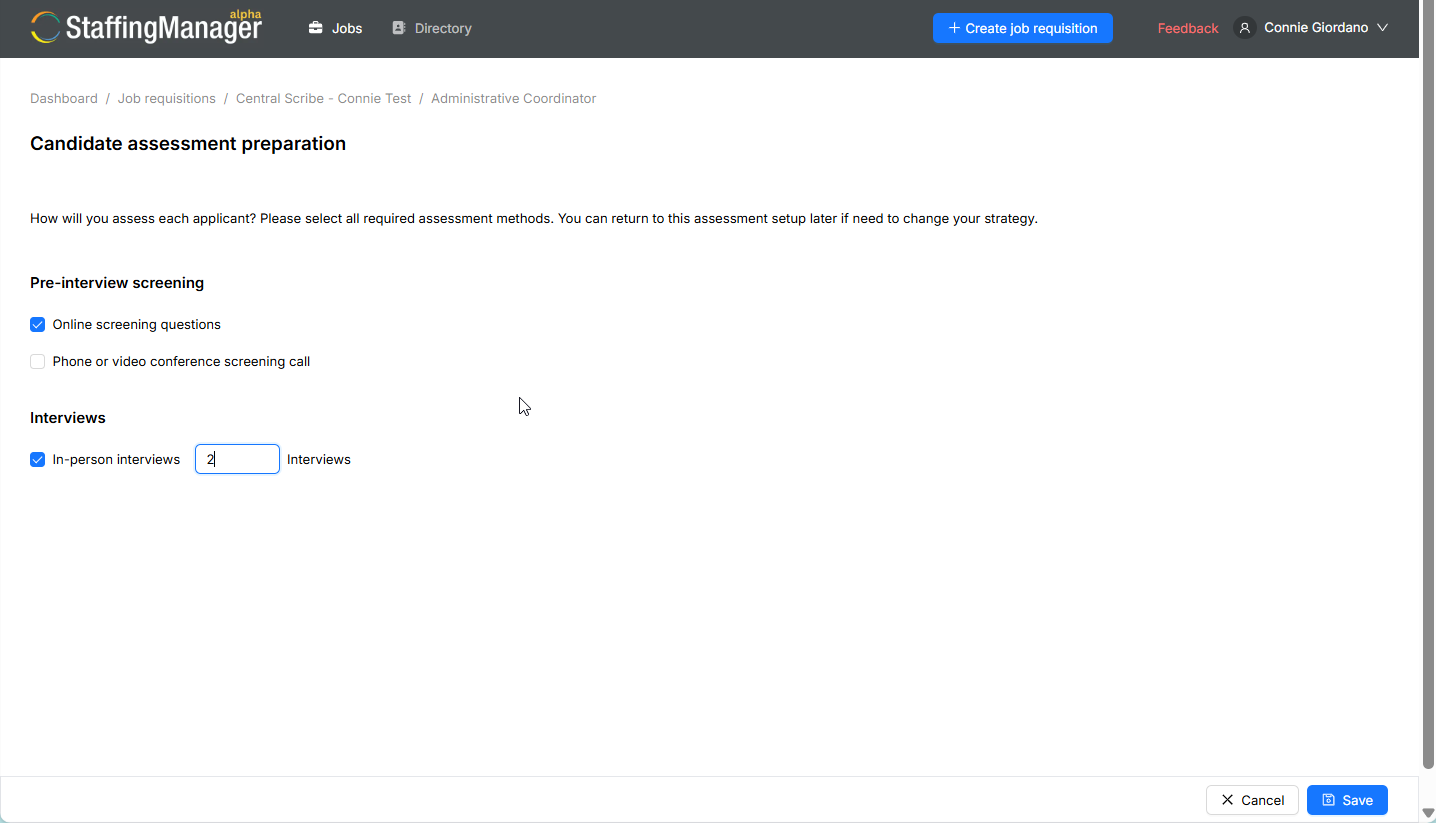
From the Candidate assessment preparation hub, click into a stage (e.g., Screening interview) to open its question builder.
View a new assessment preparation screen
-
You'll land on the New interview questions screen, with three tabs across the top: Job description, Job requisition, and Interview questions.
-
Job description (left panel, shown by default): read-only reference content pulled from the role's approved job description including job summary, duties, responsibilities, etc.
-
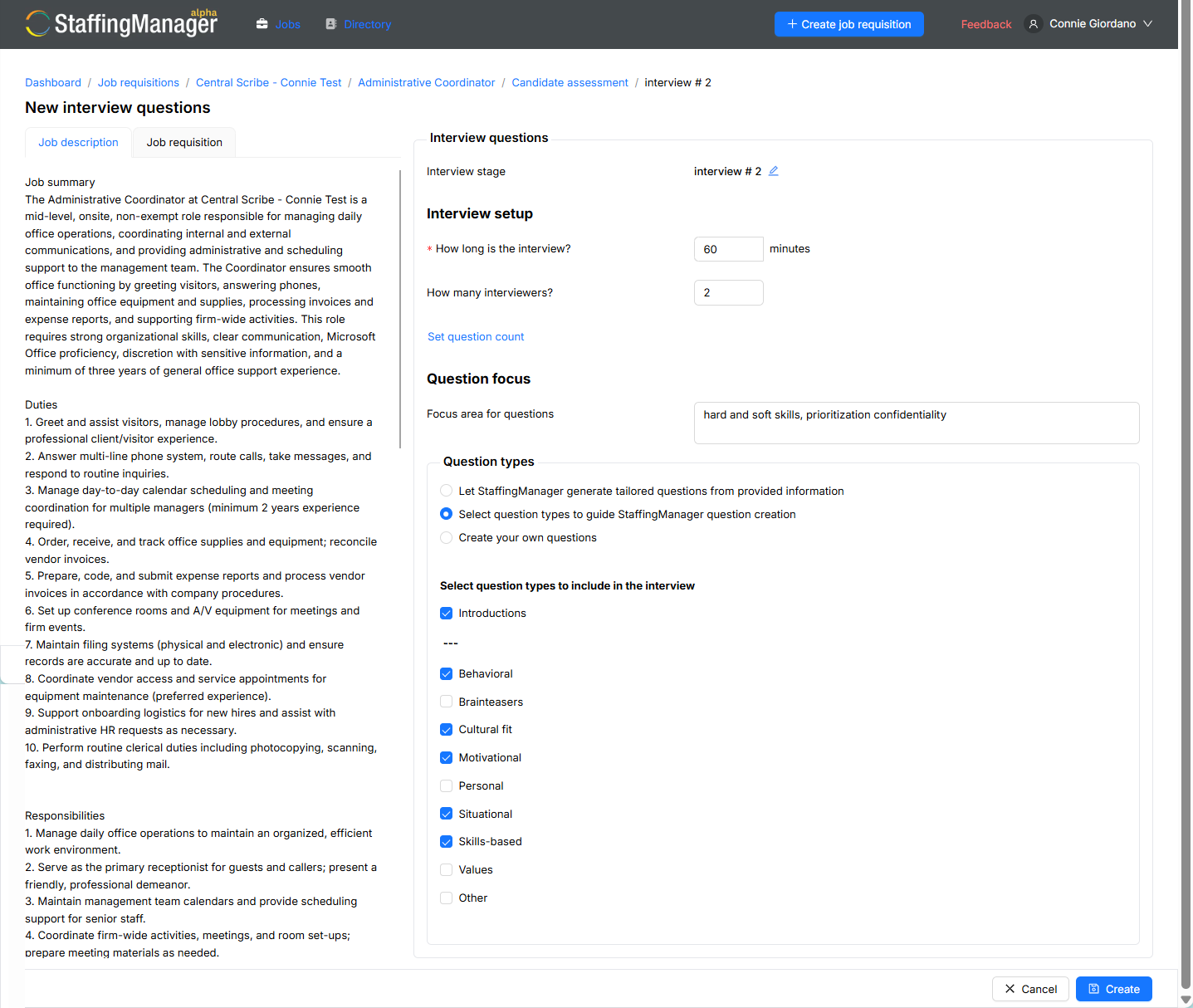
Interview setup (right panel): where you configure the interview and its questions.
-
Under Interview setup, configure:
-
Interview duration: a spinner you populate in minutes.
-
Set question count: click the link to display a spinner you populate with numbers (e.g., 6 questions, 10 questions, 15 questions).
-
Question focus: a free-text field (labeled Focus area for questions) where you describe what the interview should probe. For example: “digital content/documentation strategy, writing and editing, problem solving, using AI to support creating and producing content.”
-
Under Question types, select Let StaffingManager generate tailored questions from provided information (this is the default option).
View the Interview/assessment questions setup screen
Tip
The more specific your Focus area for questions text, the more targeted the generated questions will be. Naming specific skills, tools, or scenarios (like “using AI to support creating and producing content”) shows up directly in the generated questions.
-
Click Create.
-
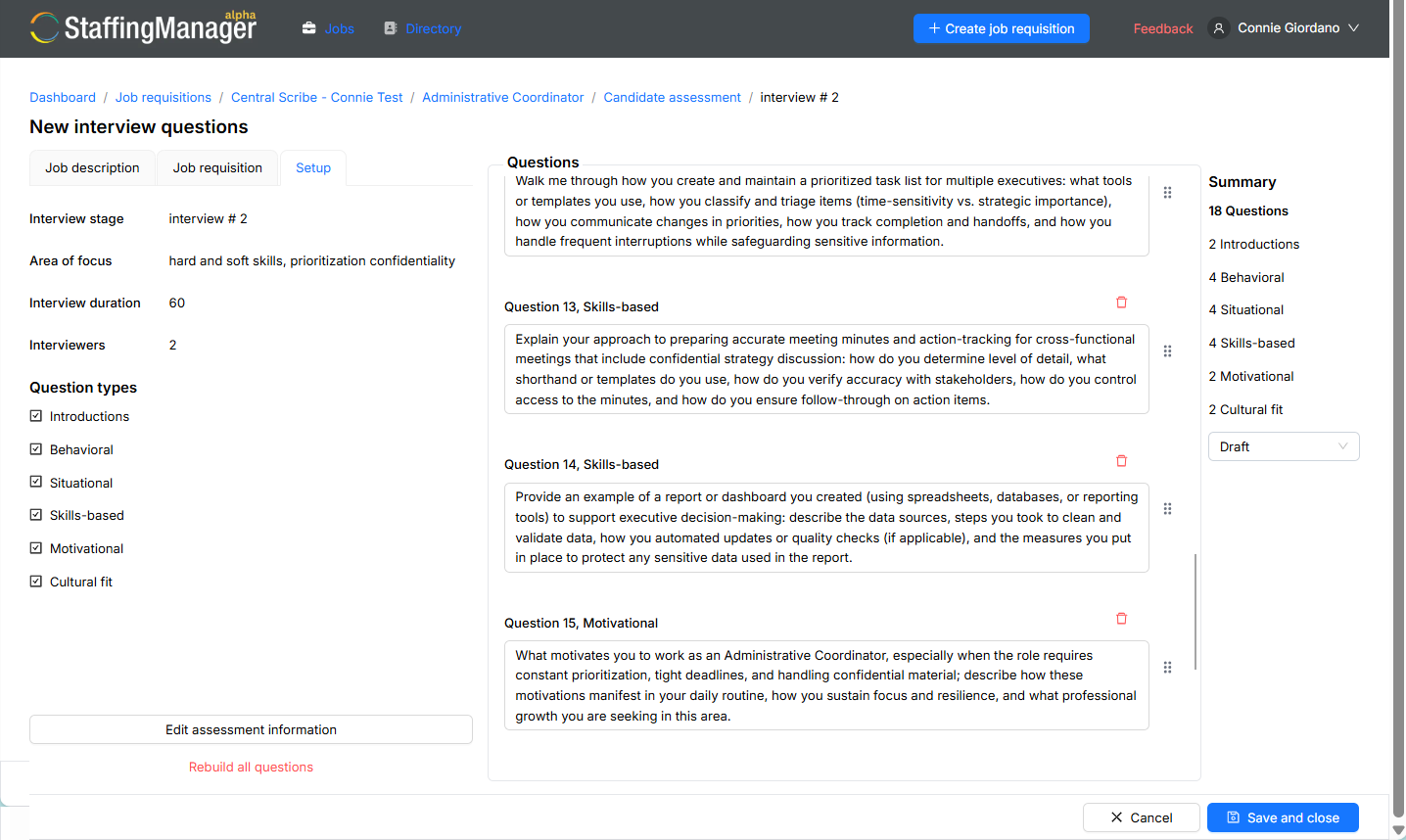
StaffingManager generates a full question set and switches you to the Setup tab, showing:
-
A Summary panel with the total question count and a breakdown by type (e.g., 1 Introductions, 1 Behavioral, 1 Situational, 1 Skills-based, 1 Motivational, 1 Other).
-
Each question listed individually as Question 1, [Type], Question 2, [Type], and so on, with the full question text.
-
Edit assessment information and Rebuild all questions links.
View the completed interview questions in the Setup tab
Important
If you want to change the interview duration, question count, or focus area after generating, use Edit assessment information rather than starting over