
If you'd rather write your own questions — or supplement AI-generated ones — StaffingManager lets you build a question set by hand, tagging each question with a type for reporting and structure.
Steps
-
From the New interview questions screen for a stage (e.g., interview #2), configure Interview setup the same way as in Generate interview questions (interview duration, number of questions, focus area).
-
Under Question types, select Create your own questions instead of the AI-generation option.
-
A checklist of question type categories appears. Select all the types you plan to write questions for:
-
Introductions
-
Behavioral
-
Situational
-
Skills-based
-
Motivational
-
Cultural fit
-
Personal
-
Brainteasers
-
Values
-
Other
Review the manual questions set up screen
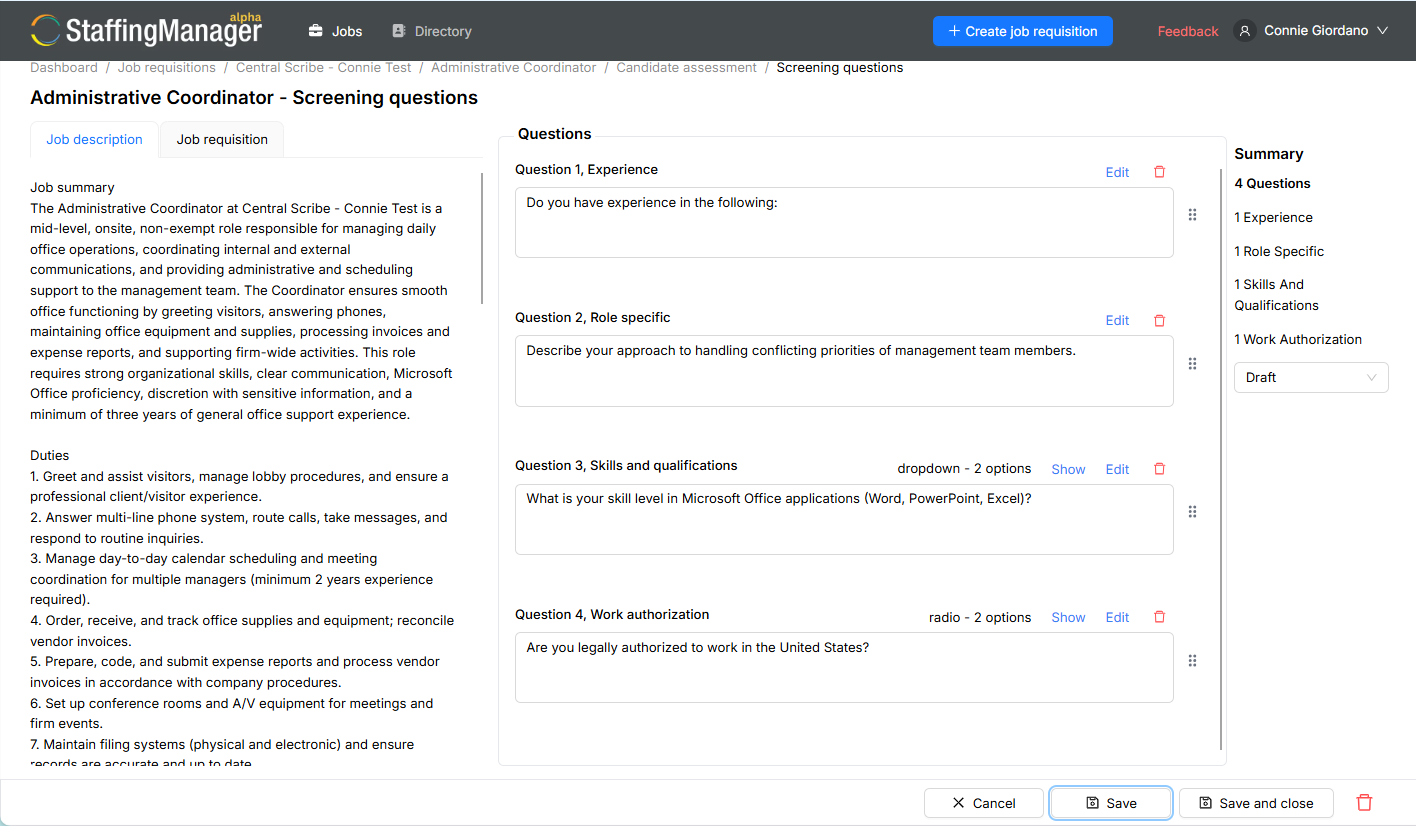
When you finish a question, StaffingManager confirms with a toast: “Successfully added new question.” A new blank Question [N] field appears for you to continue.
-
Repeat for each question you want to add — the Summary panel on the right updates its total count and per-type breakdown as you go.
-
When you're done adding questions, click Save and close.
Tip: use multiple approaches
You don't have to choose only one approach — many teams generate an initial AI question set, and then use this manual flow to add one or two custom questions specific to their team or role.
Important
Click Cancel instead of Save and close if you want to discard the questions you've added in this session — unsaved manual questions aren't kept automatically.