
After launching a marketing campaign for an open requisition, you can add candidates directly to an open job requisition in StaffingManager so all applicant information stays connected to the role.
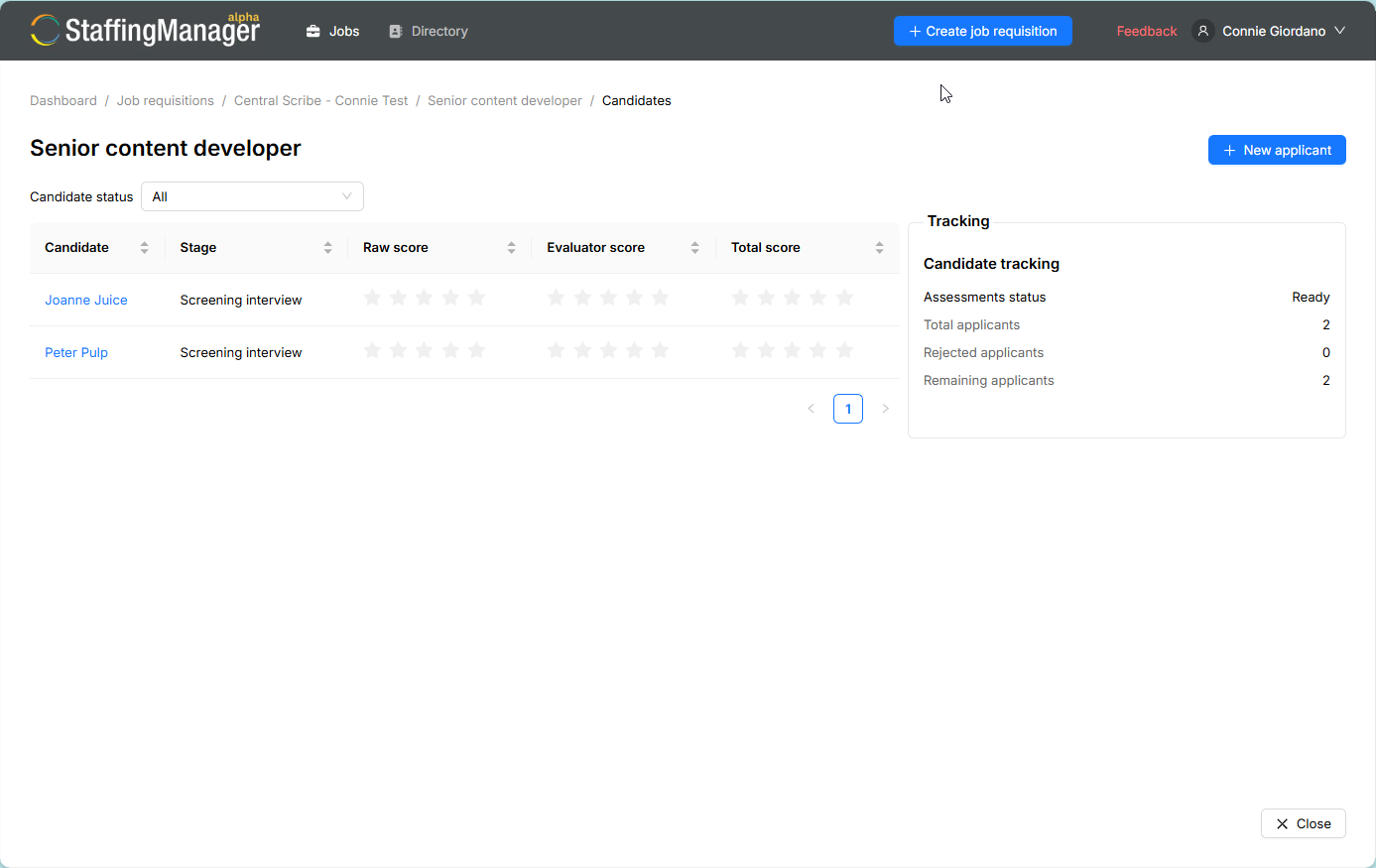
Candidate center list view; ready to add an applicant
-
Select Jobs in the top navigation bar, then open the job requisition you want to add a candidate to.
-
Select the Candidates tab.
-
Select + New Applicant in the upper right corner.
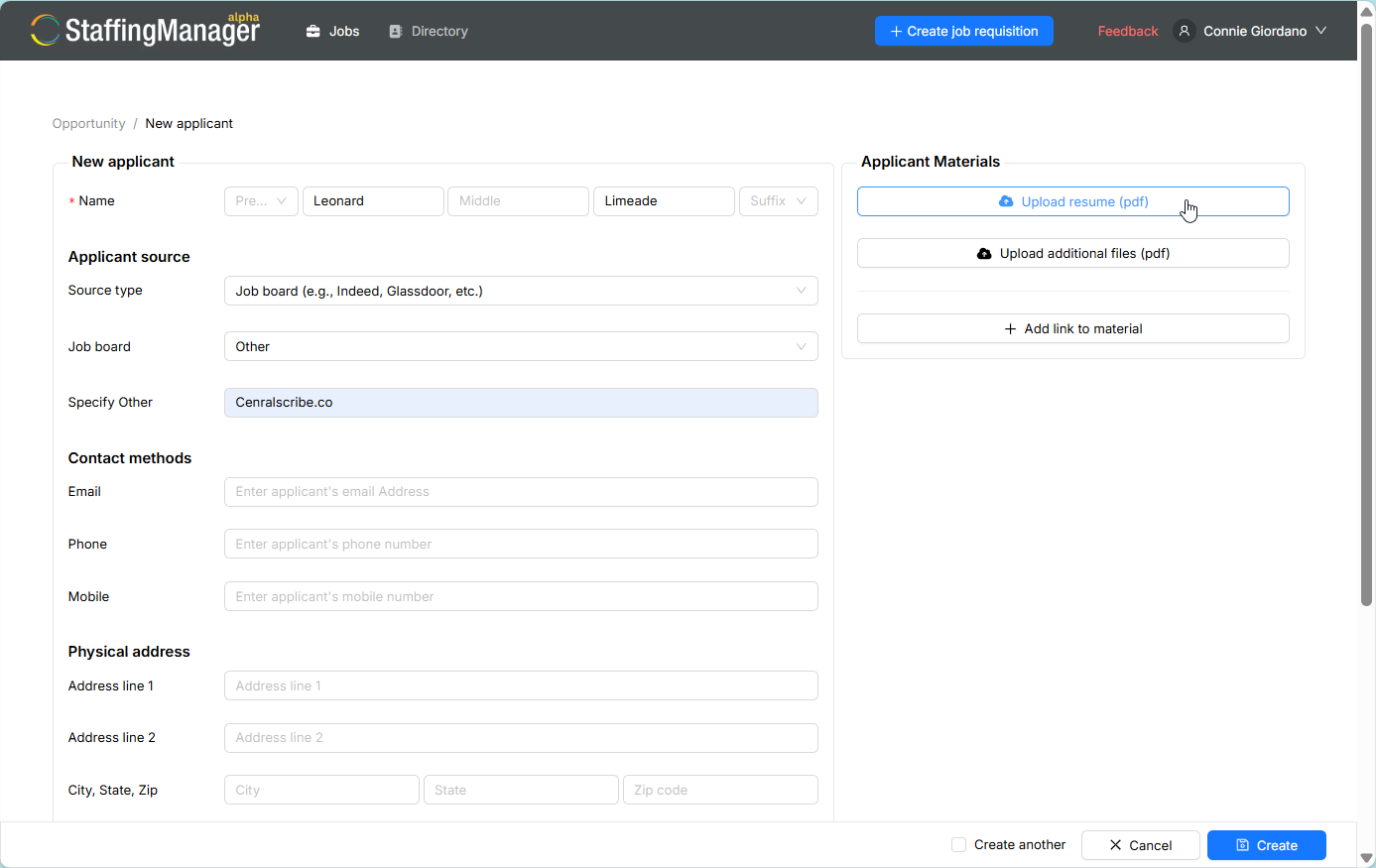
View the details of the Add new applicant screen.
-
Under Name, enter the candidate’s first and last name. Middle name, prefix and suffix are optional.
-
Under Applicant Source, select a source type.
-
Under Contact Methods, enter the candidate’s email address, phone number and mobile number.
-
Under Physical Address, enter the candidate’s mailing address, including city, state, ZIP code and country.
-
Under Professional Summary, enter the candidate’s LinkedIn profile URL, highest education level, current employer and current job title.
-
In the Applicant Materials panel on the right, upload a resume, upload additional files or add a link to outside material such as an online portfolio. S
10. If you are adding more than one candidate, select the Create Another checkbox before you save. The form stays open for your next entry.
11. Click Create to save the record, or Cancel to discard it.
After you click Create, Staffing Manager opens the new candidate’s profile page. From there you can track evaluations, attach more materials or record a hiring decision.
Tip
If you are filling several roles at once, select the Create Another checkbox to add all your applicants for a requisition in one sitting instead of reopening the form each time.
Required field: Only the candidate’s name is required to save a record. Add as much of the remaining information as you have on hand; you can always fill in details later from the candidate’s profile page.
Choose the right applicant source
Recording where each candidate came from helps you measure which recruiting channels work best — useful data when a small team is deciding where to spend a limited hiring budget.
|
Applicant source type |
Description |
|
Employee referral |
Candidates referred by a current employee. |
|
Job fair/events |
Candidates met at an in-person or virtual hiring event. |
|
Social media |
Candidates found through LinkedIn, Facebook, Instagram or a similar platform. |
|
Job board |
Candidates who applied through a site such as Indeed or Glassdoor. When you select this option, choose the specific job board from the list, or select Other and enter the site’s name in the Specify Other field. |
|
Recruiter outreach
|
Candidates a recruiter contacted directly. |
|
Other |
Any source not listed above. Enter a short description in the Specify Other field. |
Why it matters: Select the source type that best matches how the candidate actually applied. Accurate source data helps you decide which recruiting channels to fund next quarter.