
Central Scribe StaffingManager stores each candidate’s resume and supporting files with their profile, so hiring managers do not need to search email threads for attachments.
Add materials
You can attach materials while you create a new applicant record, or later from the candidate’s profile page.
-
In the Applicant Materials panel, select Upload Resume (PDF) and choose the file from your computer. Resumes must be saved as PDF files.
-
To attach a cover letter, portfolio or other supporting document, select Upload Additional Files (PDF).
-
To link to an outside profile or work sample, such as a LinkedIn page or an online portfolio, select Add Link to Material, then paste the URL.
View the candidate's profile to add materials
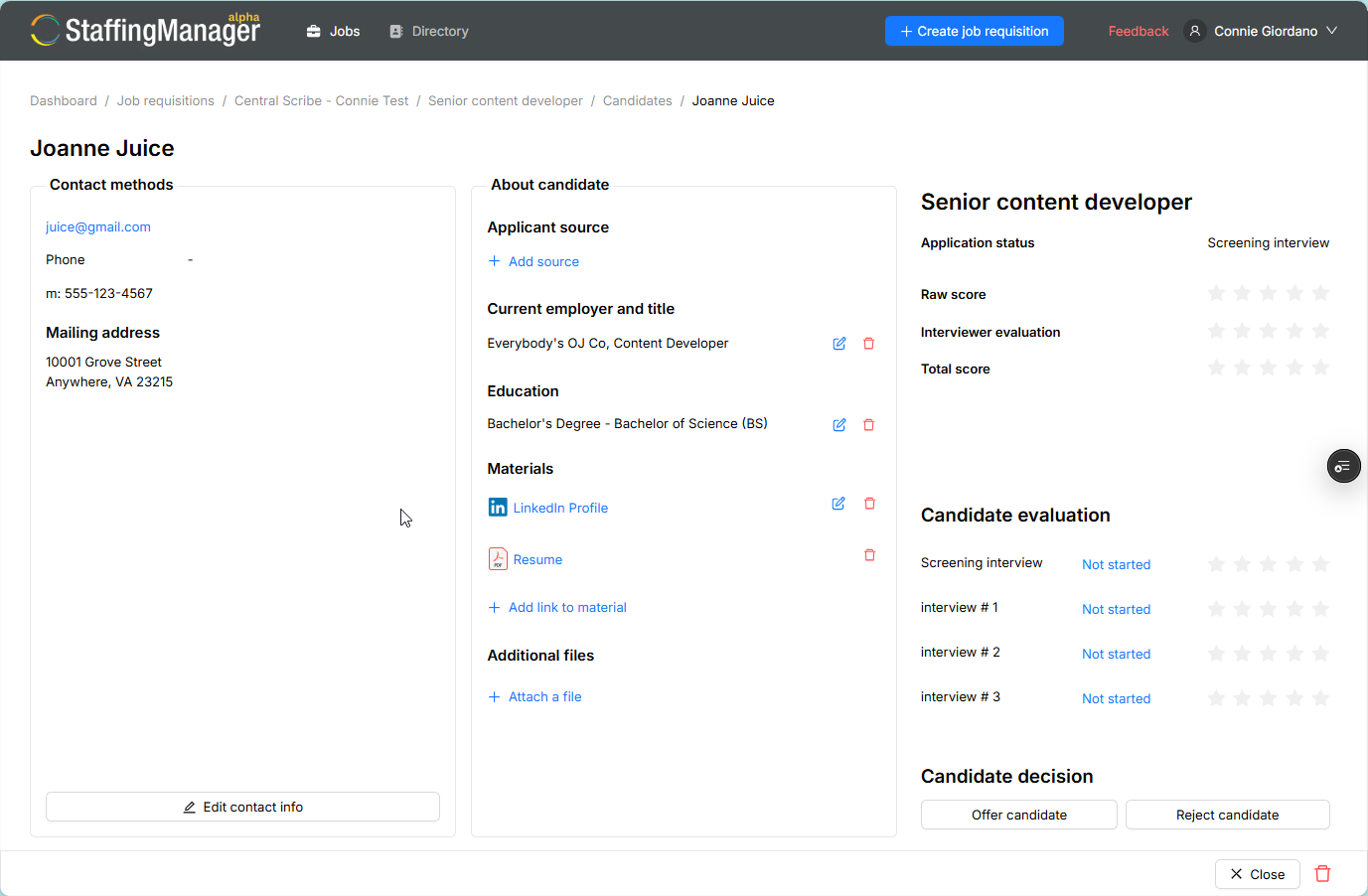
Edit or remove materials
From the candidate’s profile page, select the pencil icon next to a link to edit it, or the trash can icon next to any file or link to remove it.
Tip
Ask candidates to submit resumes as PDFs before they apply. This keeps formatting consistent when hiring managers review applications on different devices.