
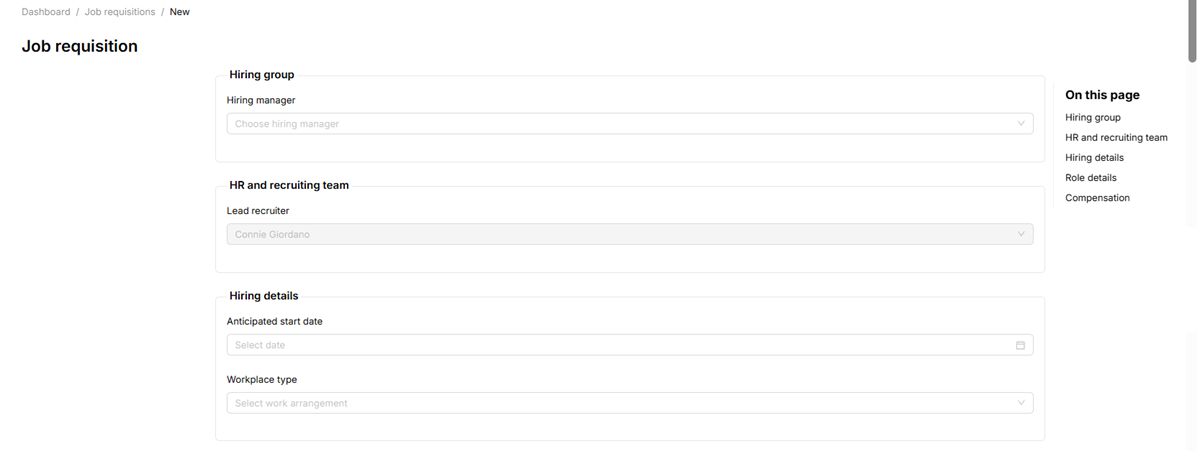
The Hiring Group section establishes ownership of the position. Both fields should be confirmed with your HR business partner before you begin the form.
|
Select the business unit or department to which this role belongs from the dropdown. This field drives budget tracking and reporting. The dropdown is populated from your organization’s account settings. If you do not see the correct business unit, contact your StaffingManager system administrator to add it. |
|
Search for and select the manager who will make the final hiring decision. The person selected here will receive system notifications and appear on candidate-facing correspondence. |
|
The recruiter who will manage the requisition, source candidates, and coordinate interviews. Defaults to the currently logged-in user. To reassign, select a different recruiter from the dropdown. |
View the Hiring group details
Hiring Details
Hiring details capture the practical logistics of the role. These fields directly influence how the position is posted and how candidates will be evaluated.
|
Enter the target date on which the new hire is expected to begin. This is used for workforce planning and onboarding scheduling, not a contractual commitment. |
|
Select the work arrangement: on-site, hybrid, or remote. This appears on the job posting and must match your organization’s approved work policy for the role. |
|
Click the field to open the location selector. Choose all office locations where candidates may be required to report. |
|
For hybrid roles, enter the minimum number of days per week the employee is expected to be on-site. |
|
Select full-time, part-time, contract, or intern. This field affects how the role is categorized in payroll and benefits systems. |
View the Hiring Role details
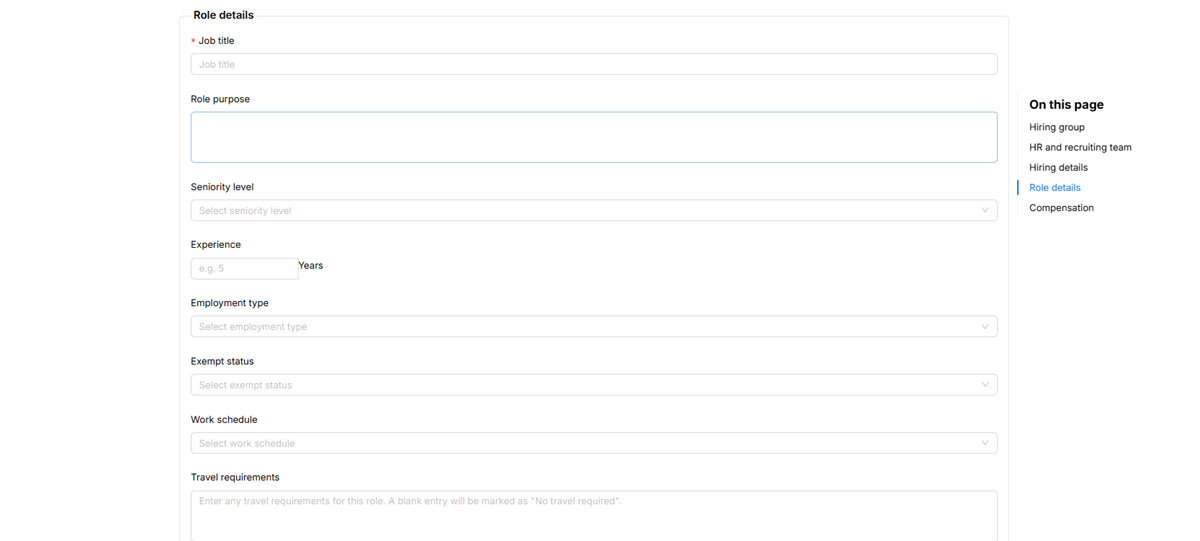
You can manage or add new workplace locations by clicking “Add/Manage Locations” beneath the location field. Changes to locations apply across your entire StaffingManager account.