
Your Role & profile page holds your personal details, login security settings, and the professional information shown in your company directory. You can reach it any time by selecting your name in the top-right corner of StaffingManager and choosing Account settings.
View the role & profile screen
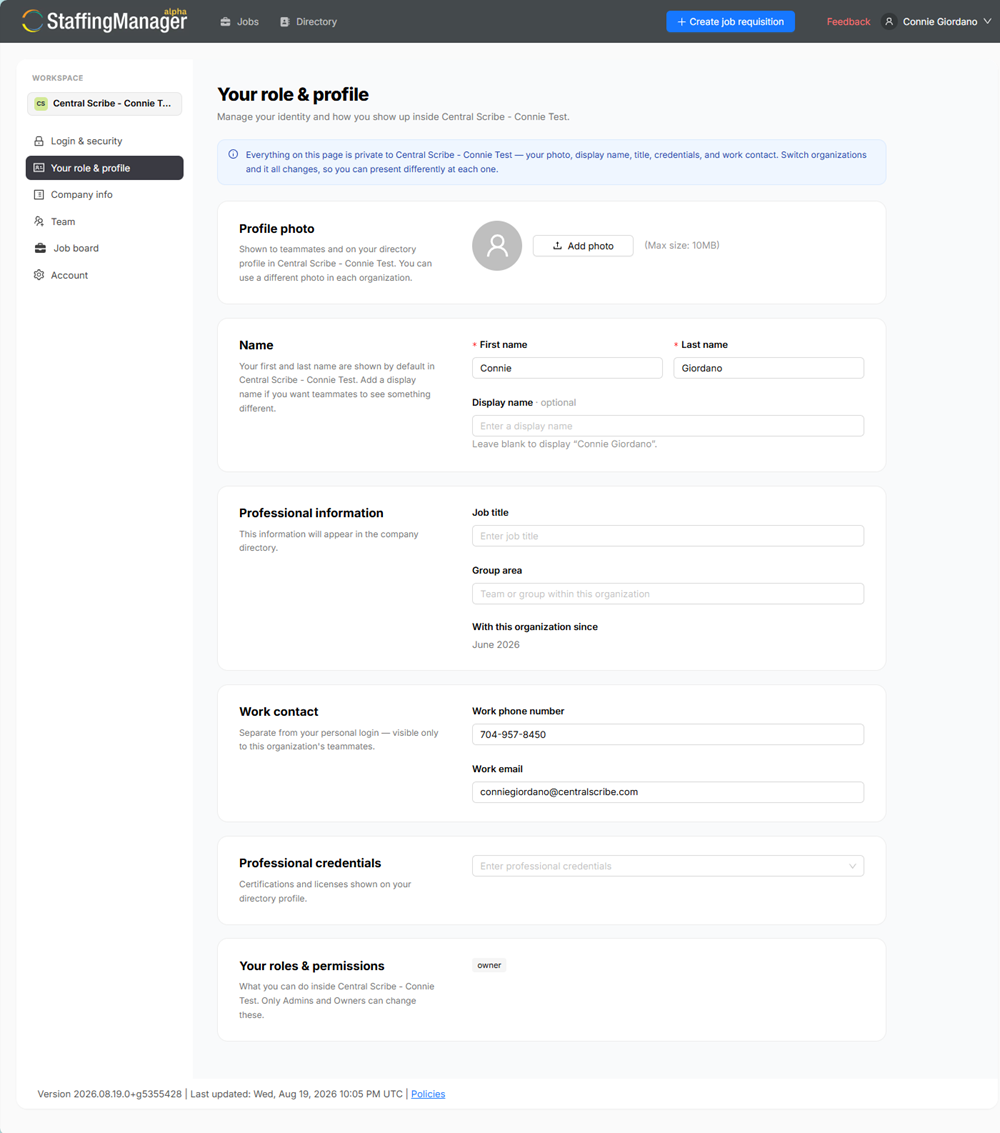
Add or change your profile photo
-
On Role & profile, find the Profile photo section.
-
Select Add photo and choose an image from your device.
-
To remove your current photo instead, select Remove photo.
A recognizable photo helps your teammates spot you quickly across StaffingManager.
Update your personal information
In the Name information section, you can update:
-
Name: how your name is displayed throughout the app.
-
Work Phone Number: your company phone number.
-
Professional Credentials: any relevant certifications or credentials.
This information helps your team identify and address you correctly.
Manage account security
The Security section is where you manage how you sign in and protect your account.
-
Login / email address: select Change email to update the address you use to log in.
-
Password: shows the date it was last updated; select Change password to set a new one. See Resetting Your Password for details.
Update your professional information
The Professional information section controls what appears about you in your company's internal directory:
-
Job Title
-
Group area: select or enter the team/department you belong to.