
Login Help Request
Use this topic when you cannot get into your StaffingManager account.
View the help request when you are unable to log in
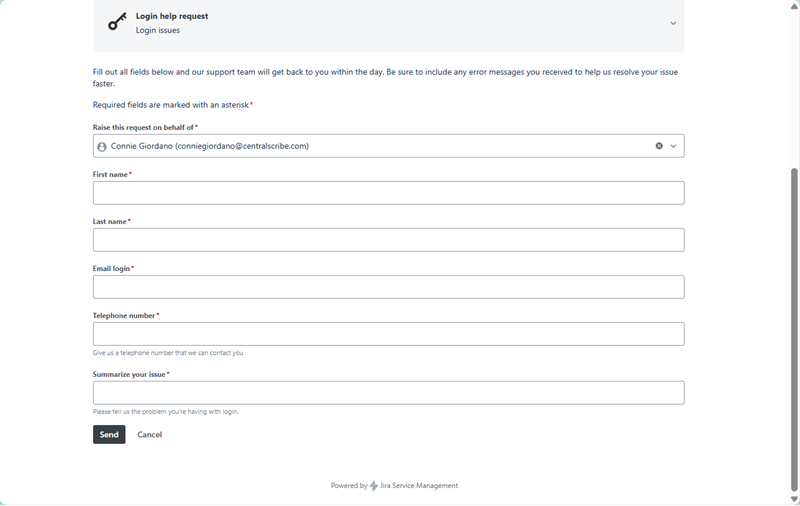
When to use this
-
You're getting an error message when you try to log in (for example, a “user not found” message).
-
You forgot your password or can't reset it.
-
Your invite or welcome email never arrived, or the link in it doesn't work.
-
Your account seems locked or disabled.
What you'll need to provide
|
Field |
What to enter |
|
Raise this request on behalf of |
Defaults to your account. Change this only if you're submitting on behalf of someone else. |
|
First name / Last name |
Your name. |
|
Email login |
The email address you use to sign in to StaffingManager. |
|
Telephone number |
A number where support can reach you if needed. |
|
Summarize your issue |
A one-line description, e.g. “Getting a user not found message when attempting to log in.” |
Tip
The more specific your summary, the faster support can help. Include the exact wording of any error message you see.
Not Sure Which Topic to Pick?
Misfiled requests take longer to resolve because they have to be re-routed. Use this quick decision guide if you're unsure.
Bug vs. feature request
This is the most common mix-up. Ask yourself one question:
|
The simple test “Has this ever worked correctly?”
|
|---|
|
Field |
What to enter |
|
Report a bug |
“The Save button used to work and now nothing happens.” |
|
Suggest a feature |
“There's no way to filter candidates by source — can we add one?” |
|
Report a bug |
“The dashboard shows the wrong number of open requisitions.” |
|
Suggest a feature |
“It would help if we could export this report to Excel.” |
Technical support vs. bug
If you're asking how to do something, or how to configure StaffingManager for your situation, that's Technical support — even if the eventual answer turns out to be “that's a bug, we'll fix it.” Support will redirect it internally if needed, so you don't have to get this perfect.
Still not sure?
Submit it under Other questions, or your best guess from the list above, and describe the problem in plain language. The support team will recategorize it if needed — you won't be penalized for guessing wrong.
Quick Reference
A one-page summary of all five request types.
|
Request type |
Use it for |
Key fields |
|
Login help request |
Can't sign in or log-in errors |
Email login, phone, issue summary |
|
Technical support |
How-to and configuration questions |
Summary, detailed description, files |
|
Report a bug |
Something is broken or incorrect |
Summary, detailed description, screenshot |
|
Suggest a feature |
Ideas for new or improved functionality |
Summary, detailed description |
|
Other questions |
Anything else |
Open description |
Suggested answers as you type
While you fill out the Summary field, the portal searches the help center and shows suggested articles that might already answer your question. It is worth a quick look before you submit.
What happens after you submit
Every request becomes a tracked ticket with its own page. You will see a confirmation banner (“Request submitted successfully”) right away, and you will get notifications as the team responds. From the ticket you can:
-
See the current status, typically Open or Waiting for Support while the team reviews it.
-
Add comments or more details at any time.
-
Escalate the request if it becomes urgent.
-
Resolve the request yourself if you find a workaround, or cancel it if it is no longer needed.
-
Share the ticket with a teammate so they are kept in the loop.
Thank you for testing StaffingManager. Every login issue, bug report, and feature idea you submit during the alpha helps shape the product before general release.