
Technical support
Use this topic when you need help installing, configuring, or using a feature — not when something is actually broken.
View the request for technical support
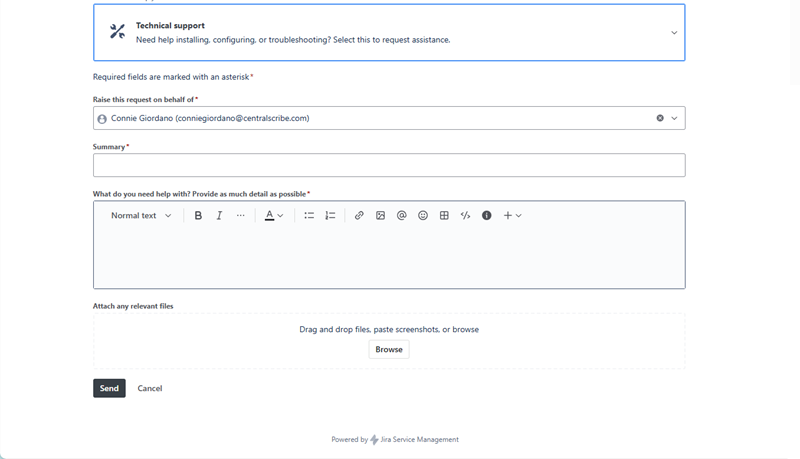
When to use this
-
You're not sure how to configure StaffingManager for your team's setup (for example, one person holding multiple roles).
-
You need help setting up a new user, requisition, or workflow.
-
Something is confusing or you can't find a setting.
-
You want guidance before you try something, to avoid making a mistake.
What you'll need to provide
|
Field |
What to enter |
|
Raise this request on behalf of |
Defaults to your account. |
|
Summary |
A short title, e.g. “Need to create a user with two roles.” |
|
What do you need help with? |
As much detail as possible: your goal, what you've tried, and any constraints (e.g. “We are a small company and the recruiter and hiring manager are the same person. How do we configure StaffingManager accordingly?”). |
|
Attach any relevant files |
Screenshots of the screen you're asking about are very helpful (drag and drop, paste, or browse). |
Technical support vs. Report a bug
If you're asking “how do I…?” or “what's the best way to…?”, choose Technical support.
If something used to work, or should work, and it doesn't, choose Report a bug instead.
Report a Bug
Use this topic to tell us about something that isn't working the way it should.
View the Report a bug submission form
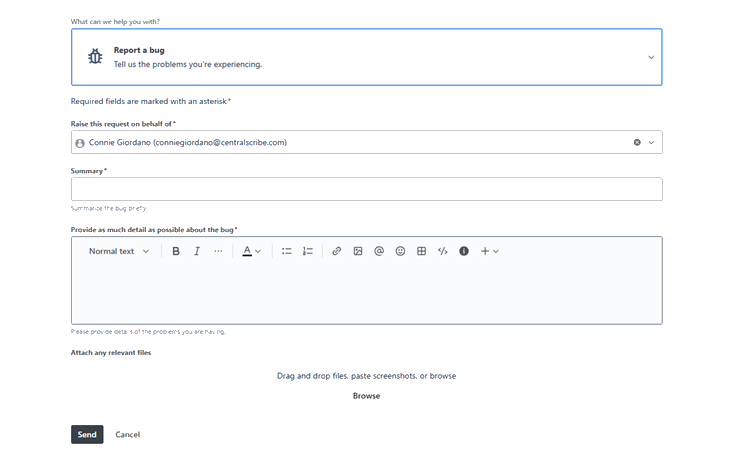
When to use this
-
A screen shows incorrect, missing, or outdated information (for example, a saved record doesn't appear after saving).
-
An action doesn't do what it's supposed to (a button, save, or approval doesn't take effect).
-
You see an unexpected error message while using a feature (not logging in).
-
The app crashes, freezes, or behaves inconsistently.
|
Field |
What to enter |
|
Raise this request on behalf of |
Defaults to your account. |
|
Summary |
Summarize the bug briefly, e.g. “Assessment not saved.” |
|
Provide as much detail as possible about the bug |
What you did, what you expected, and what actually happened, e.g. “The display does not show a saved assessment after clicking Save and approve.” |
|
Attach any relevant files |
A screenshot or screen recording of the issue. This is the single most useful thing you can include. |
Writing a bug report that gets fixed faster
-
Say what you were trying to do (e.g. “I clicked Save and approve on a candidate assessment…”).
-
Say what you expected to happen.
-
Say what actually happened instead.
-
Attach a screenshot, if you can — it often answers questions before support has to ask them.